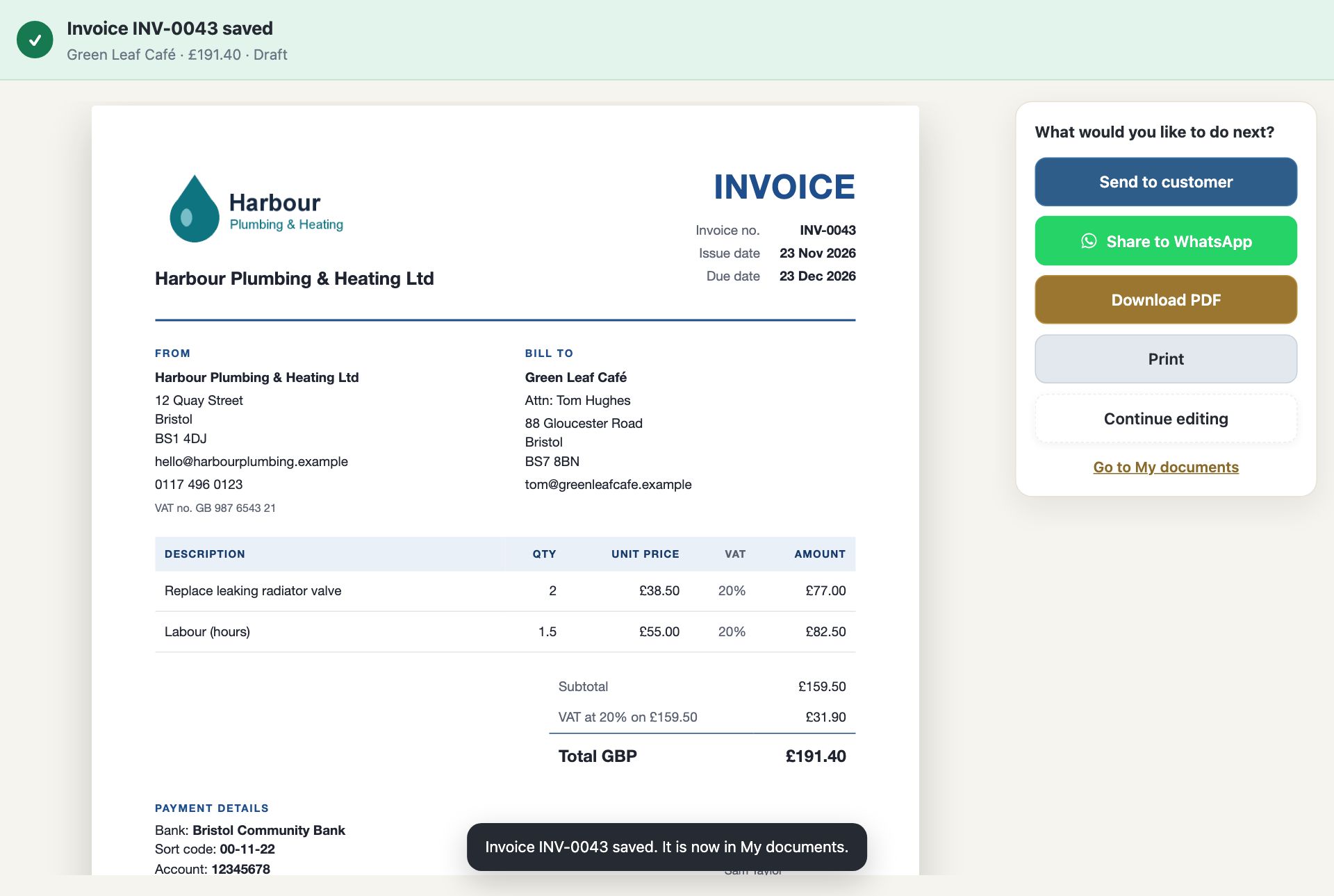

Create and save an invoice
From a blank page to a finished invoice, ready to send.
-
Start a new document
Choose New document at the top of the screen. On a phone, tap the round + button and choose Invoice.

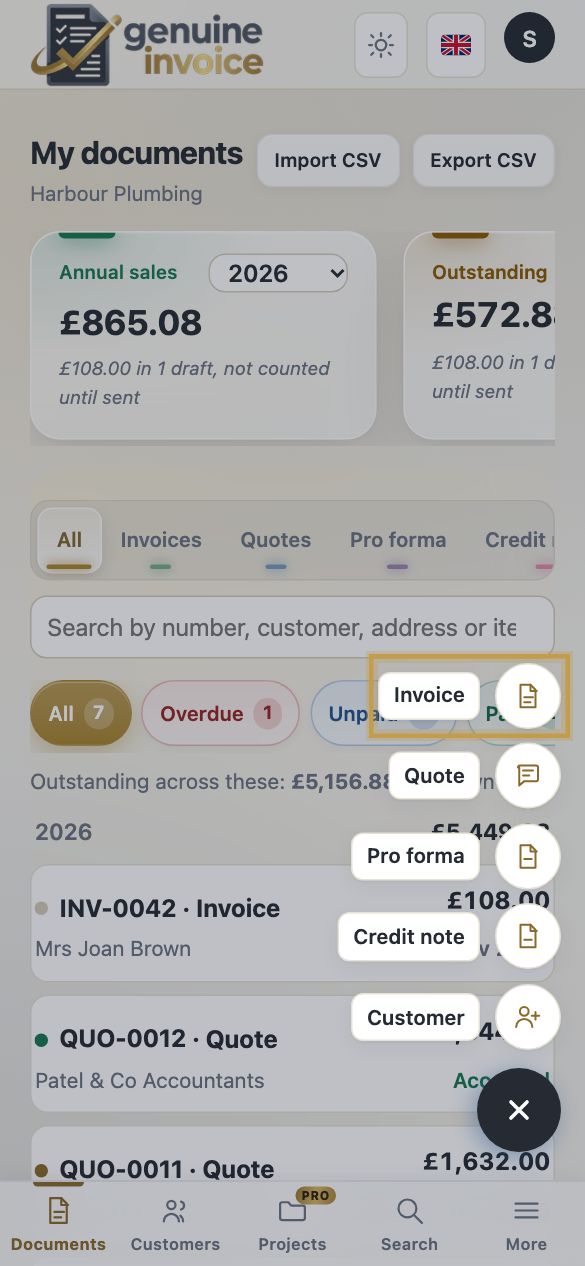
On a phone -
Check the details at the top
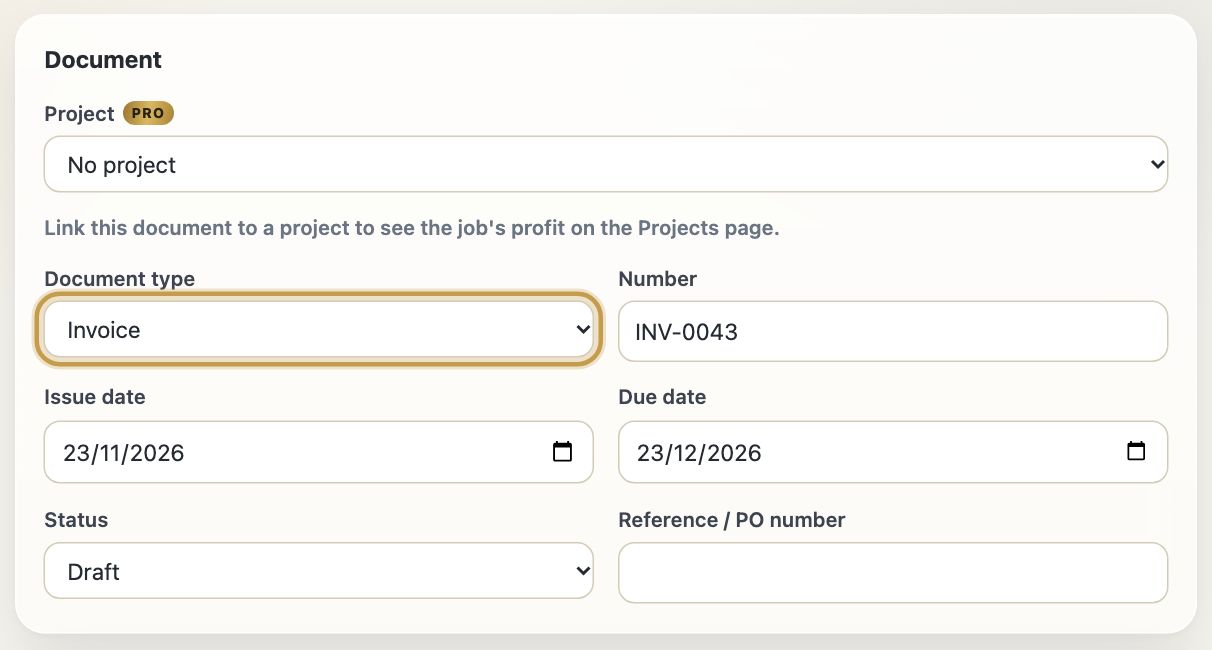
Document type is already Invoice. The number, issue date and due date are filled in for you; change them if you need to. A new invoice starts as a Draft. On a phone, the form is split into sections: tap one to open it.
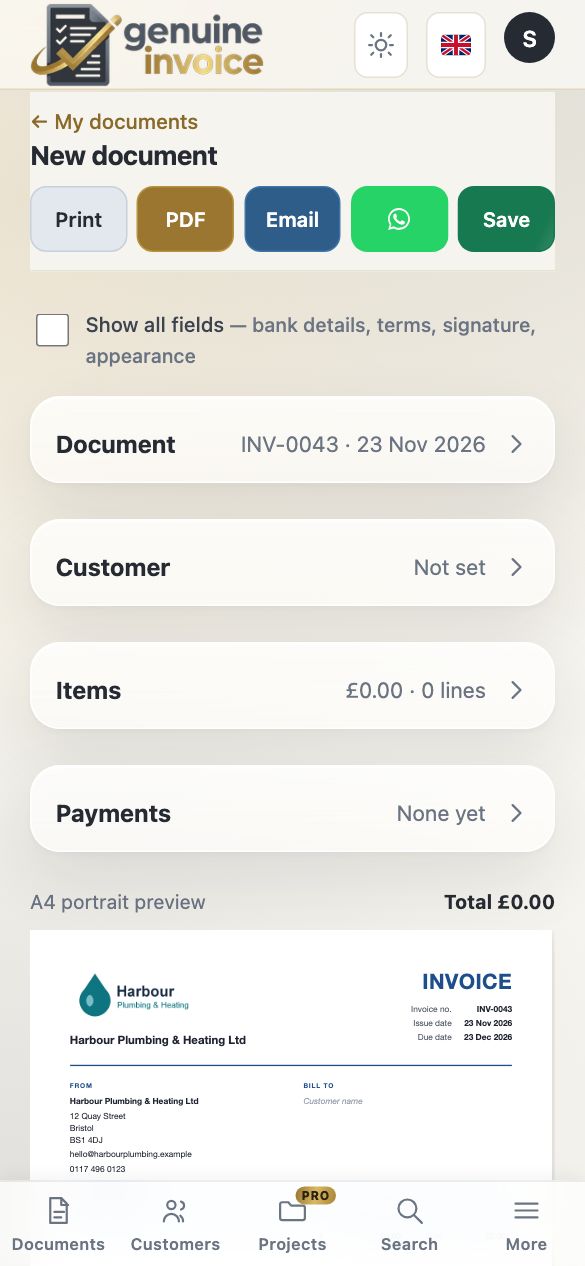
On a phone -
Choose the customer
Start typing the customer’s name. If you have billed them before, pick them from the list and their contact, address, email and phone fill themselves in. For someone new, just type their details: they are saved for next time.
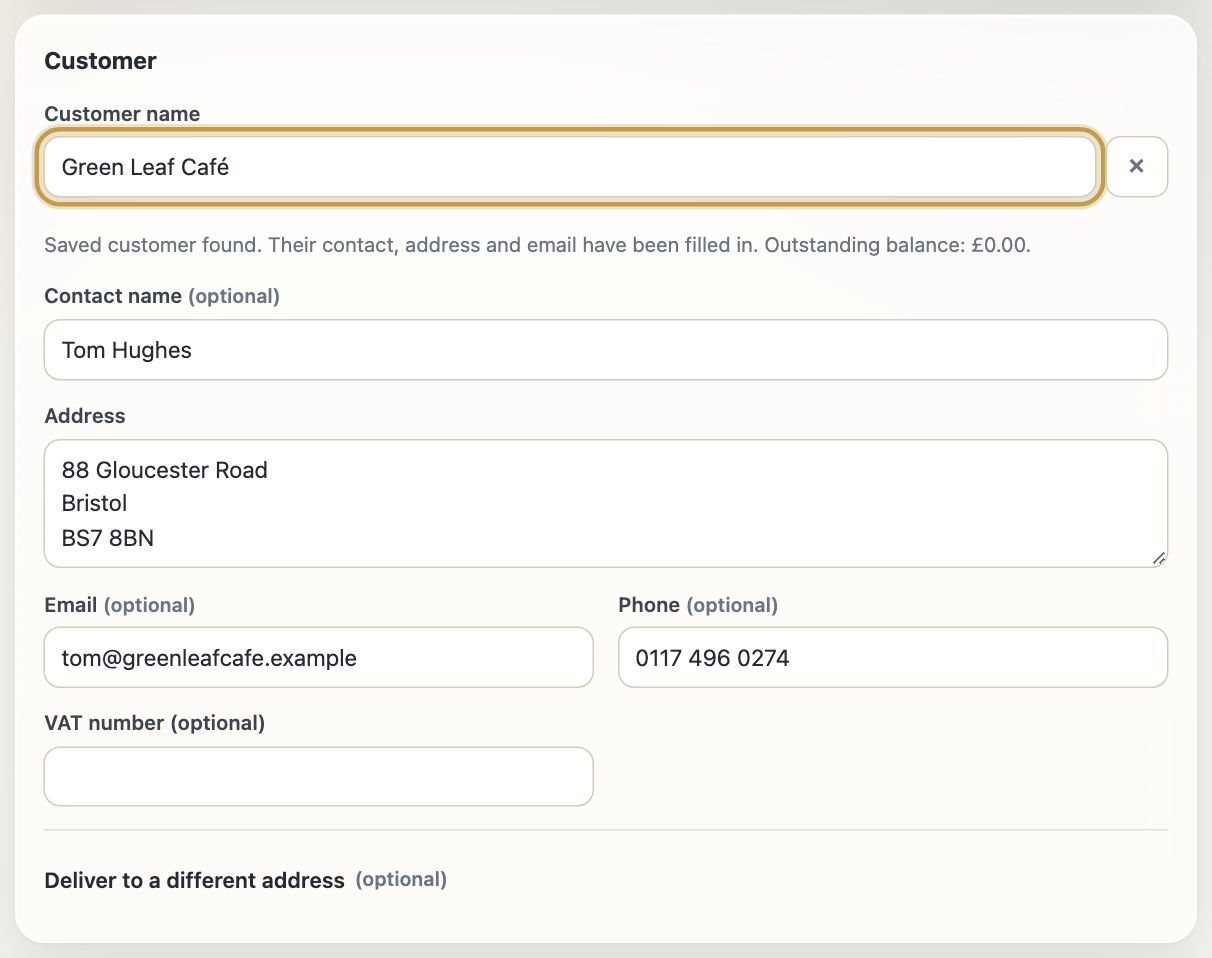
-
Add what you are charging for
On each line, type a description, the quantity and the unit price; the amount, tax and totals work themselves out. + Add line adds another line, Saved items picks from lines you have used before, and the microphone on each line lets you say an item instead of typing it.
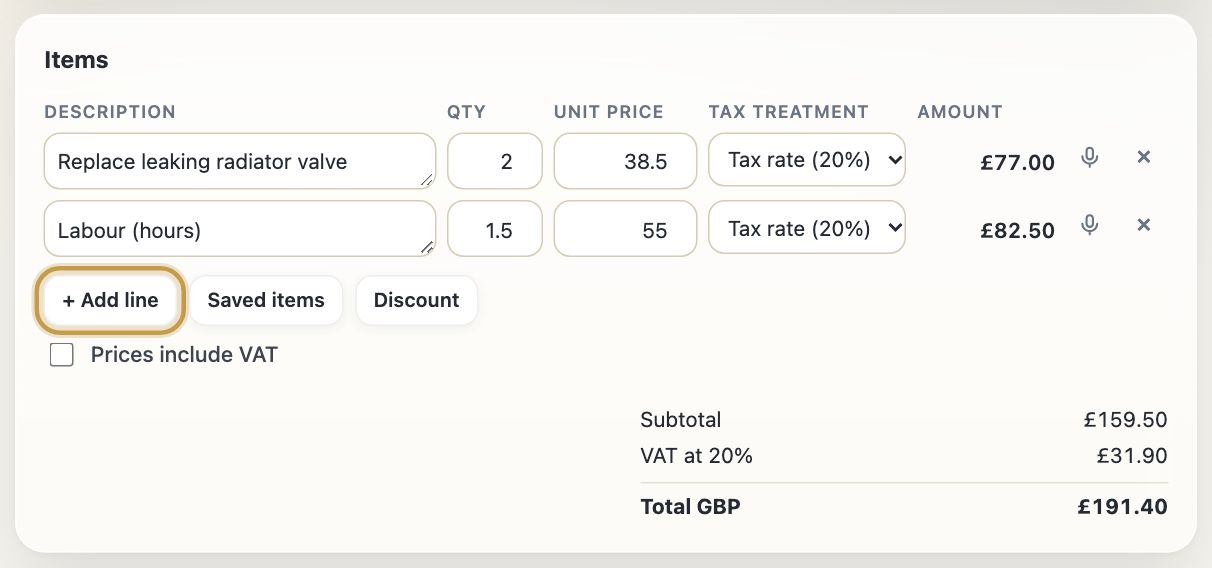
-
Check the preview
The page beside the form shows the invoice exactly as your customer will see it. The PDF matches it. On a phone, the preview is below the sections.
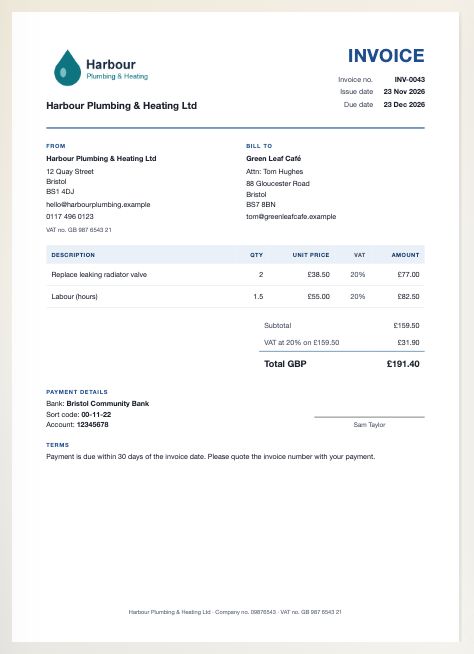
-
Save
Choose Save.

-
Decide what to do next
You see the finished invoice with your choices: Send to customer, Share to WhatsApp, Download PDF or Print. It is also listed in My documents.