
Create a quote
Price a job for a customer, send it, and keep track of their answer.
-
Start a quote
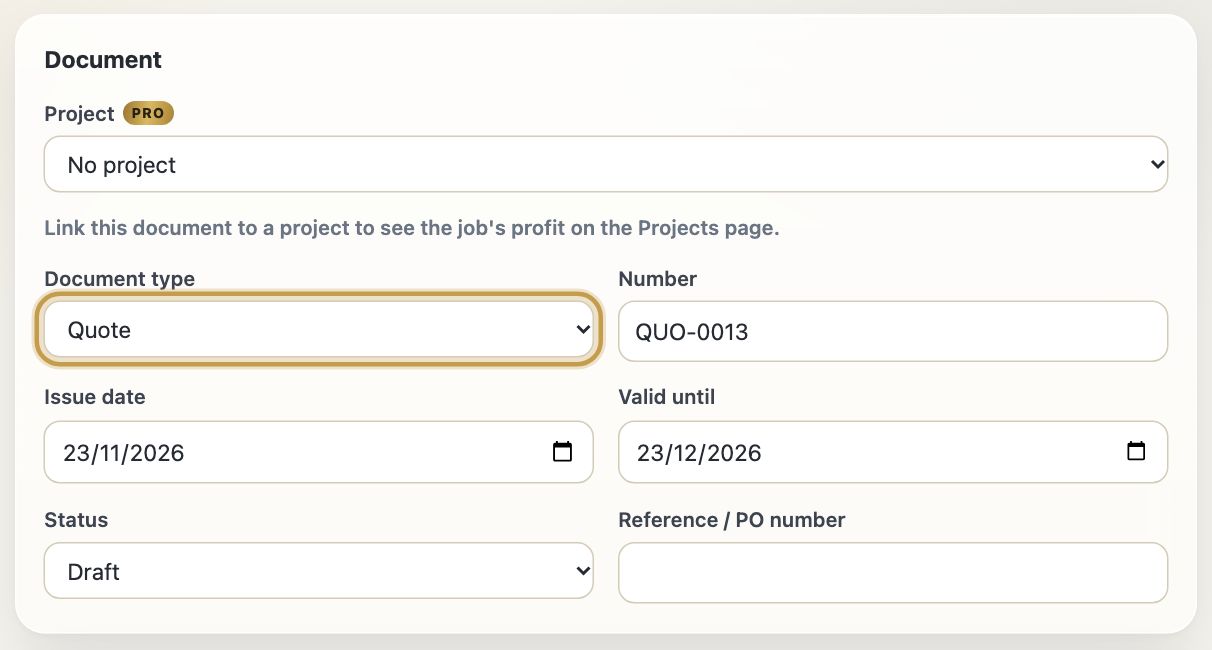
Choose New document and set Document type to Quote. On a phone, tap + and choose Quote. The number becomes a quote number, and the due date becomes Valid until.
-
Add the customer and the items
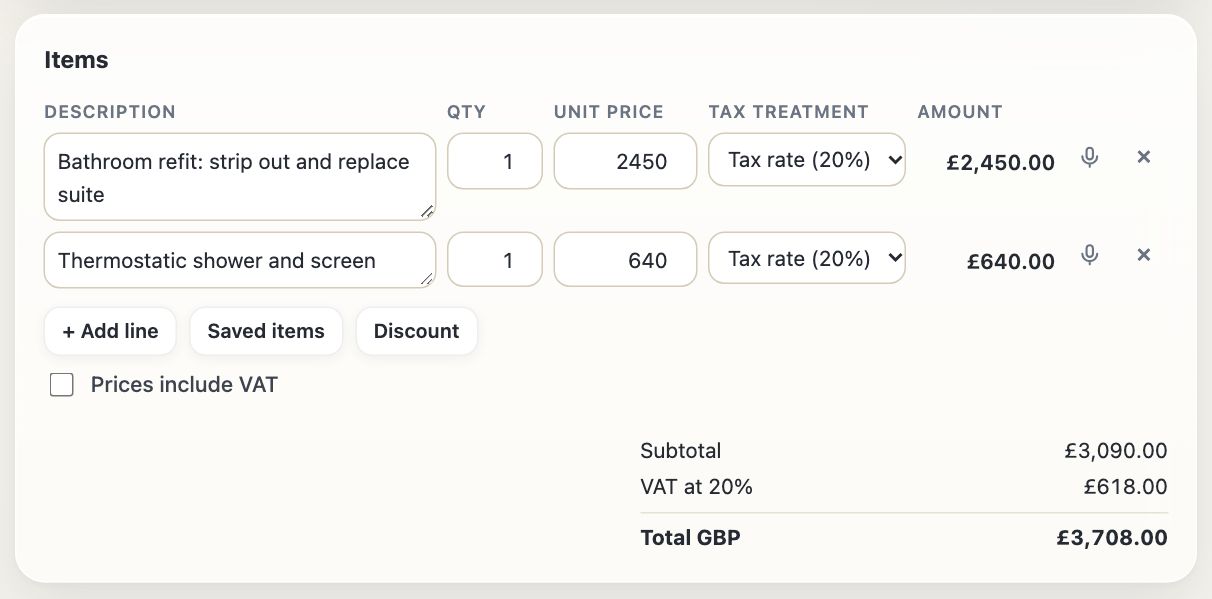
Choose the customer and add the items just as you would on an invoice. See Create and save an invoice for the details.
-
Save and send it
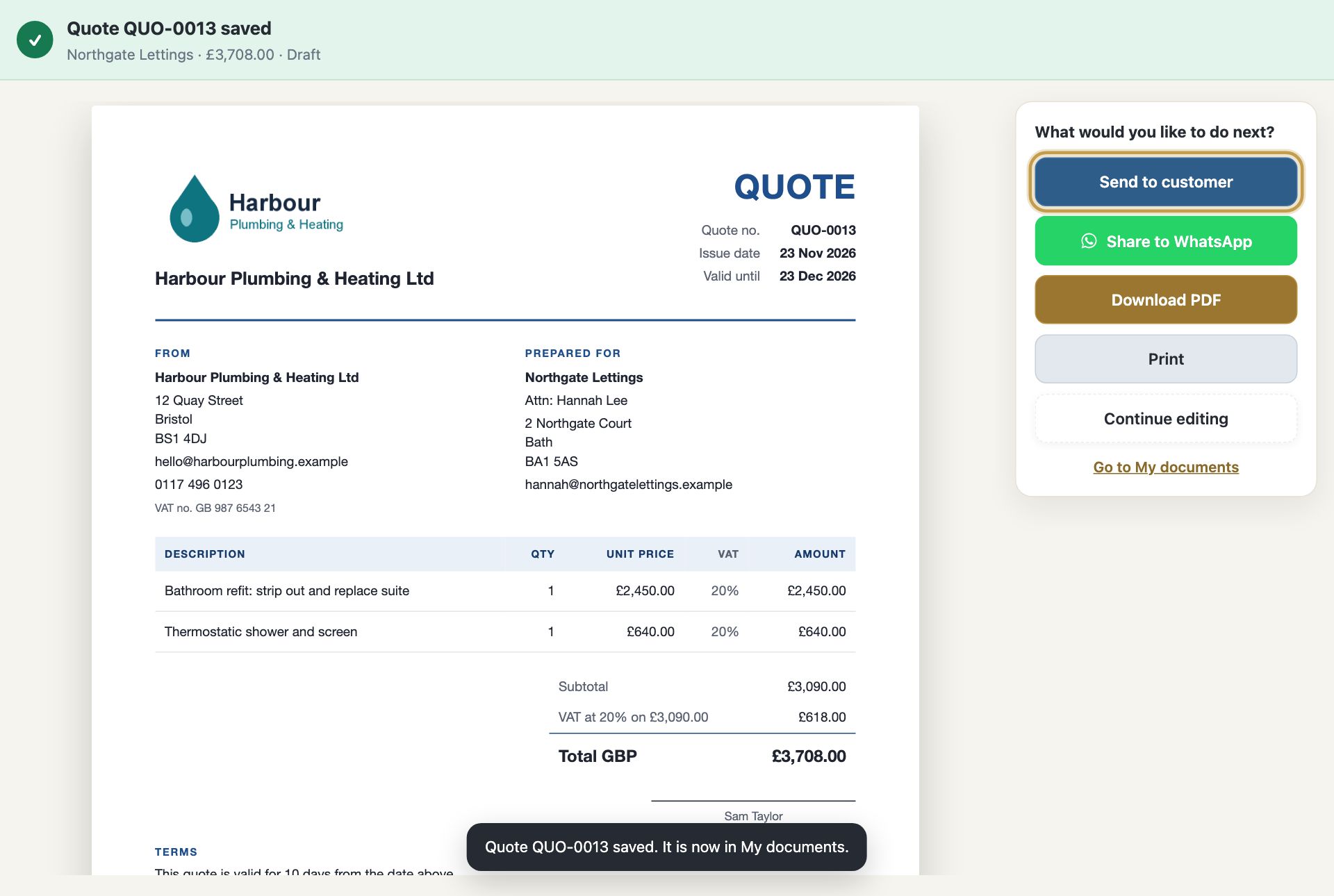
Choose Save, then Send to customer to email it. You can also share it on WhatsApp, download the PDF or print it.
-
Record the answer
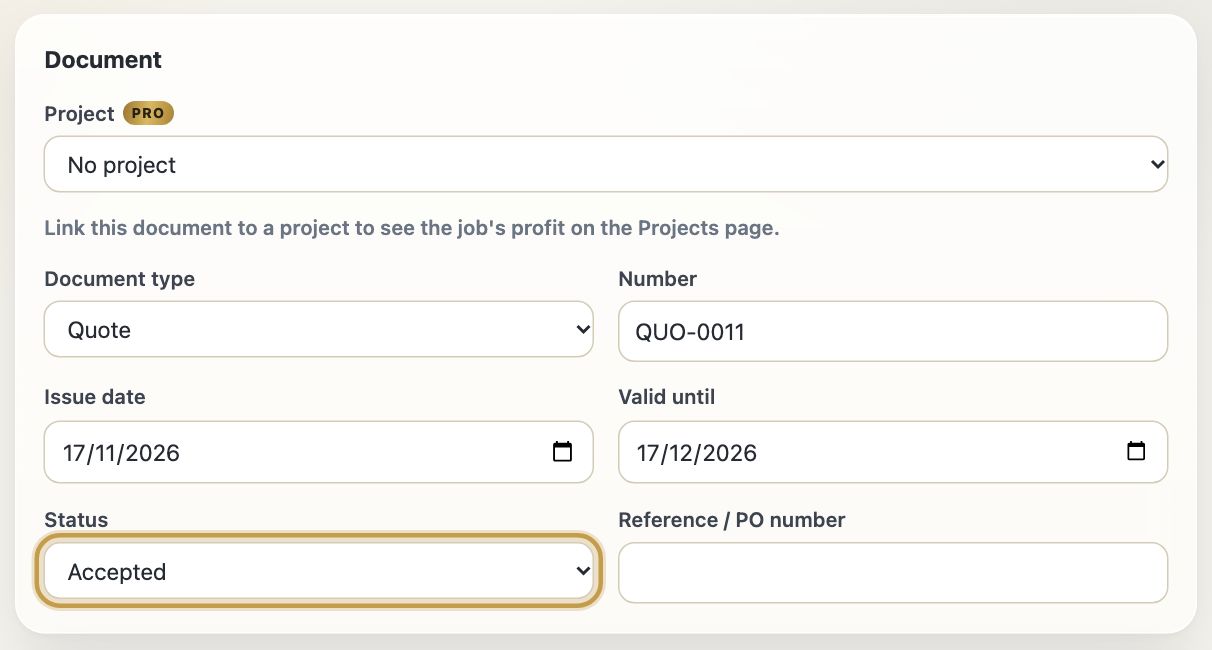
When the customer replies, open the quote, set Status to Accepted or Declined, and save. Open quotes on your dashboard counts the ones still waiting.