Set up your business details
Your business name, address and bank details go on every invoice and quote you send.
-
Fill in your details
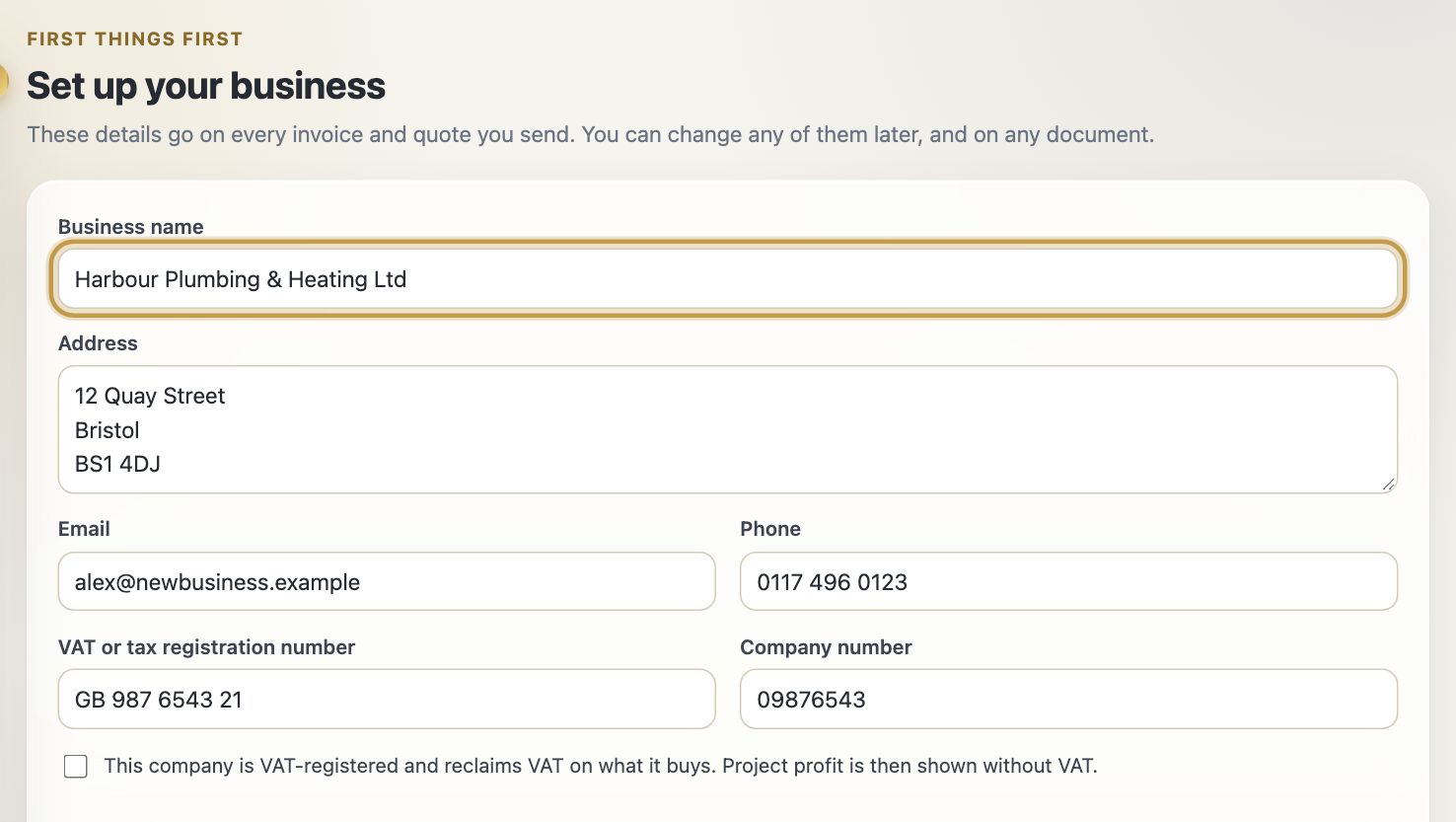
When you first sign in, Genuine Invoice opens Set up your business. Type your business name (the only box you must fill in), then your address, email and phone, and your VAT and company numbers if you have them. Tick This company is VAT-registered if it is.
-
Choose your country and what to call quotes
Your country sets the currency and the tax you charge. Call quotes lets you use the word your customers expect: quote, estimate, quotation or proposal.

-
Add the account you are paid into
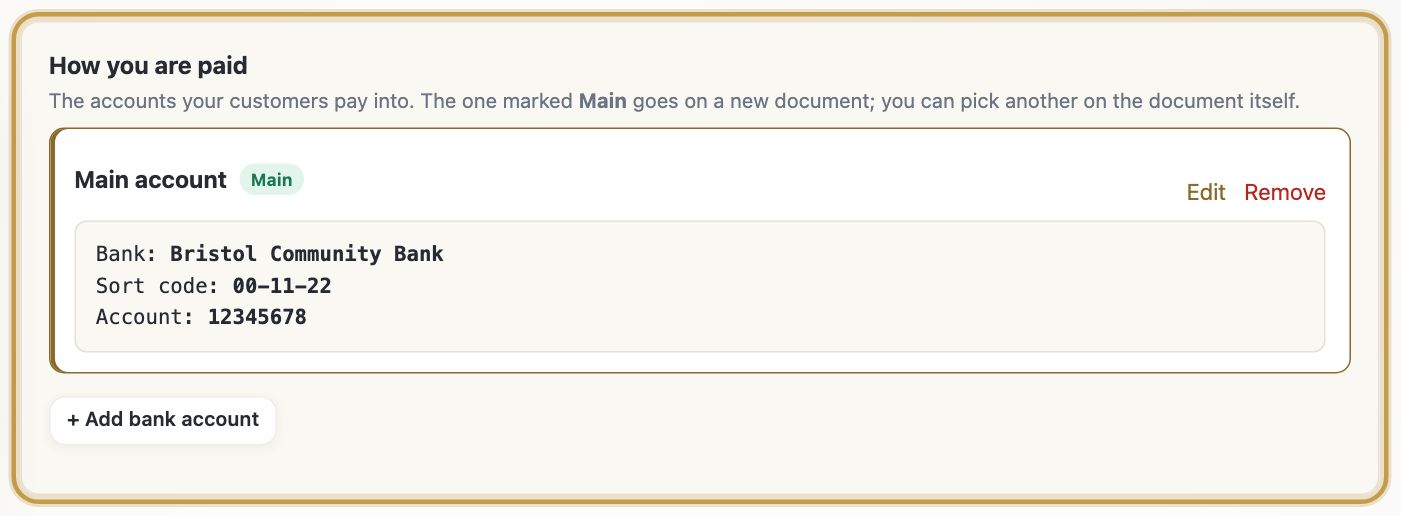
Under How you are paid, choose + Add bank account and type the details your customers pay into. They print on every invoice. You can add more than one account; the one marked Main goes on new documents.
-
Save
Choose Save and start invoicing. Advanced settings holds numbering, taxes, extra columns and document checking. You can leave those for later.

-
Change them whenever you like
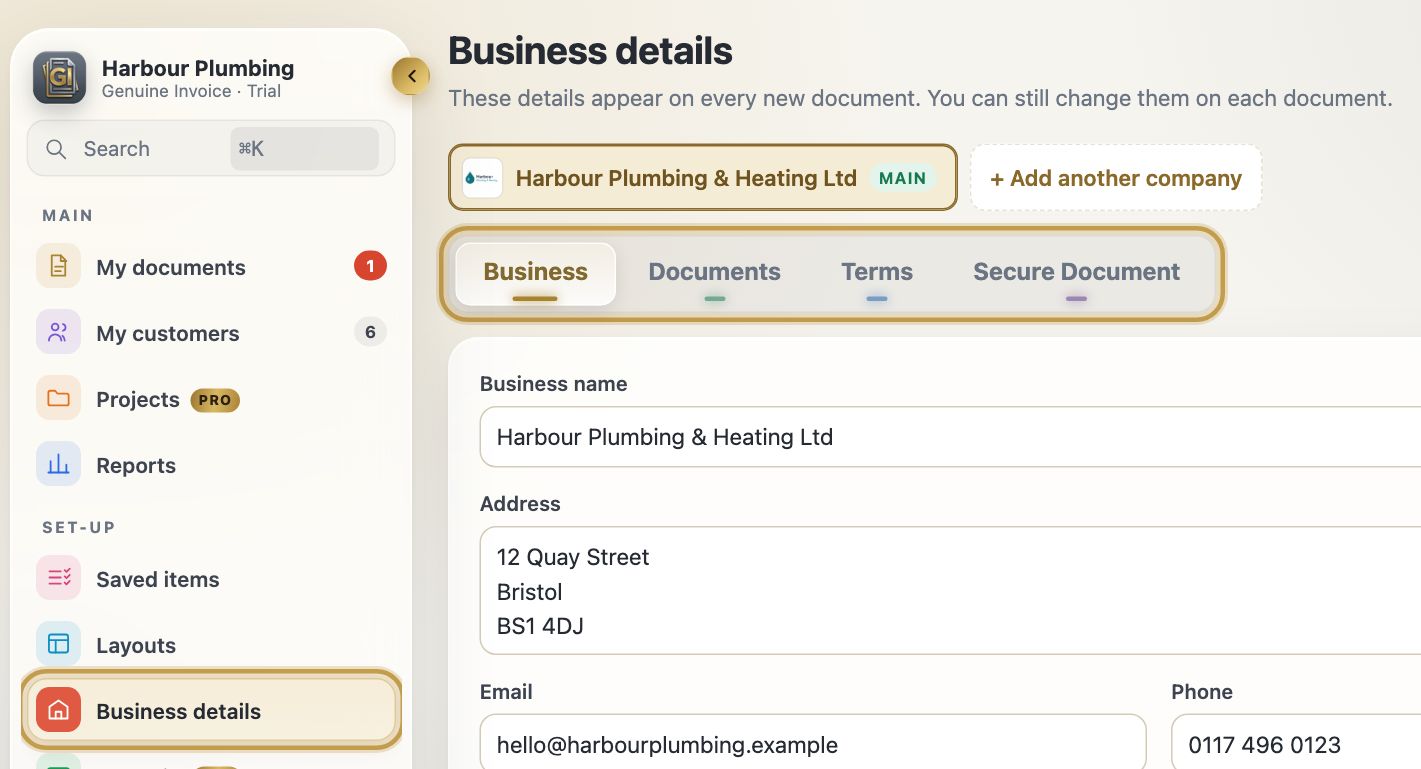
Open Business details in the menu. The tabs Business, Documents, Terms and Secure Document hold everything; choose Save business details when you are done. New documents use the new details, and you can still change them on any single document.