
Give a discount
Take a percentage or an amount off the whole document, before or after tax.
-
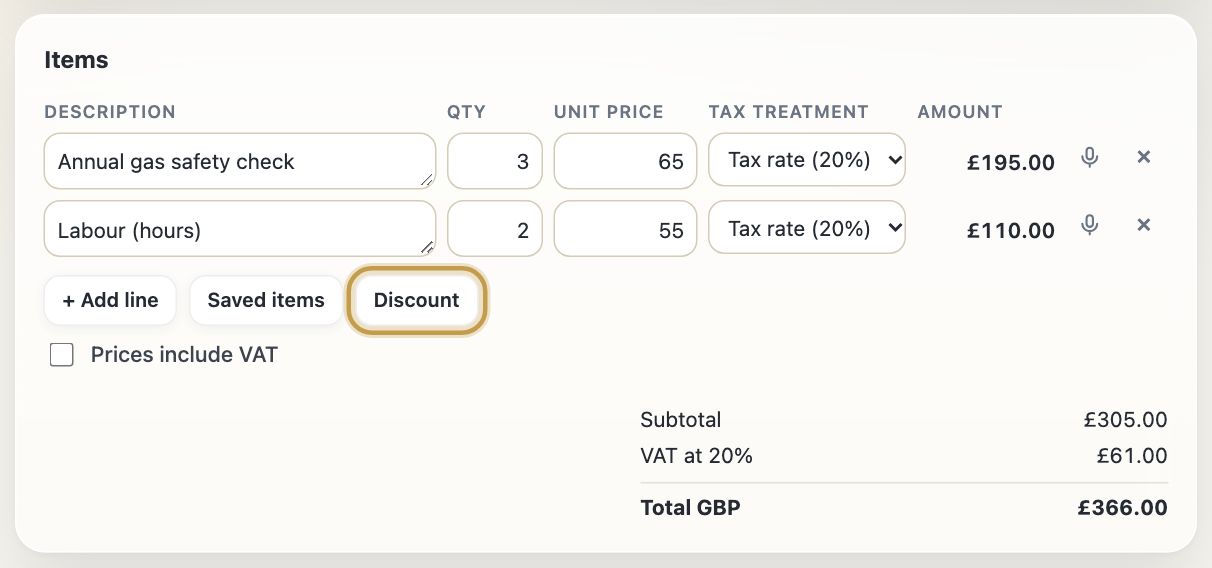
Choose Discount
Under the items, choose Discount.
-
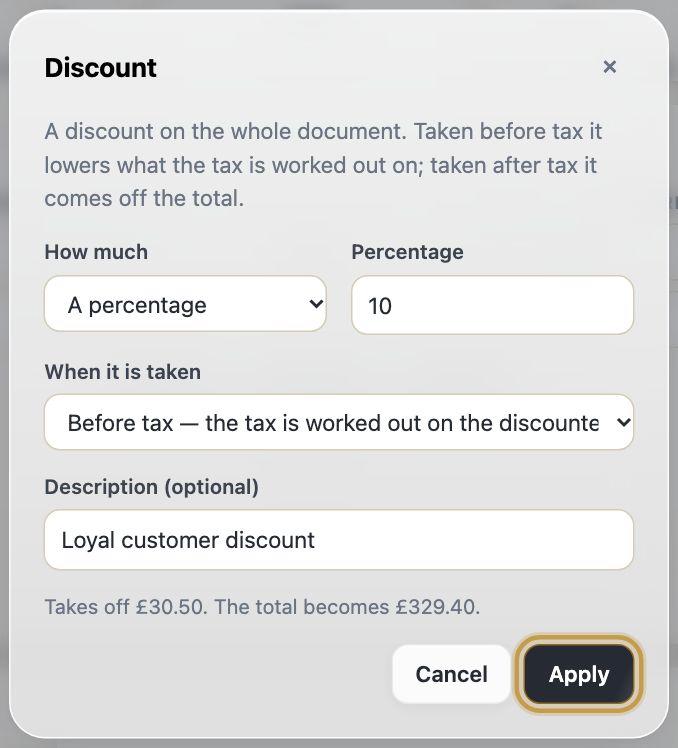
Say how much, and when it is taken
Choose a percentage or a fixed amount and type it in. Before tax means the tax is worked out on the lower amount; After tax takes it off the total and leaves the tax as it was. Add a description if you like, then choose Apply.
-
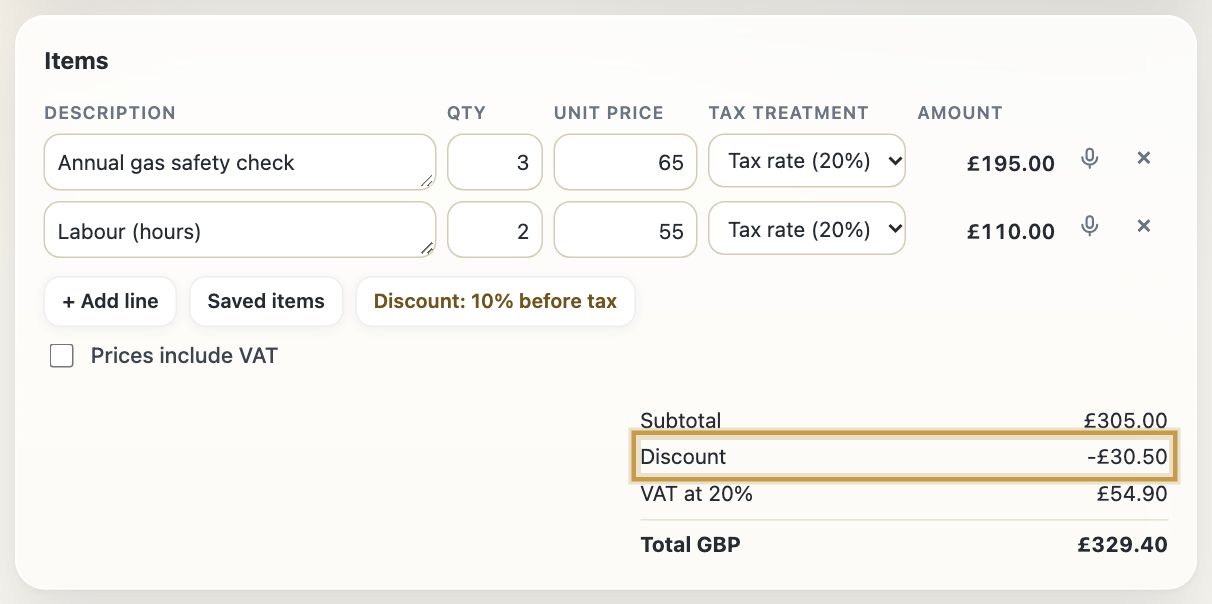
Check the totals
The discount shows as its own line in the totals, and on the document. Choose Discount again to change or remove it.