Convert a quote to an invoice
When a customer accepts a quote, make the invoice in one step.
-
Select the quote
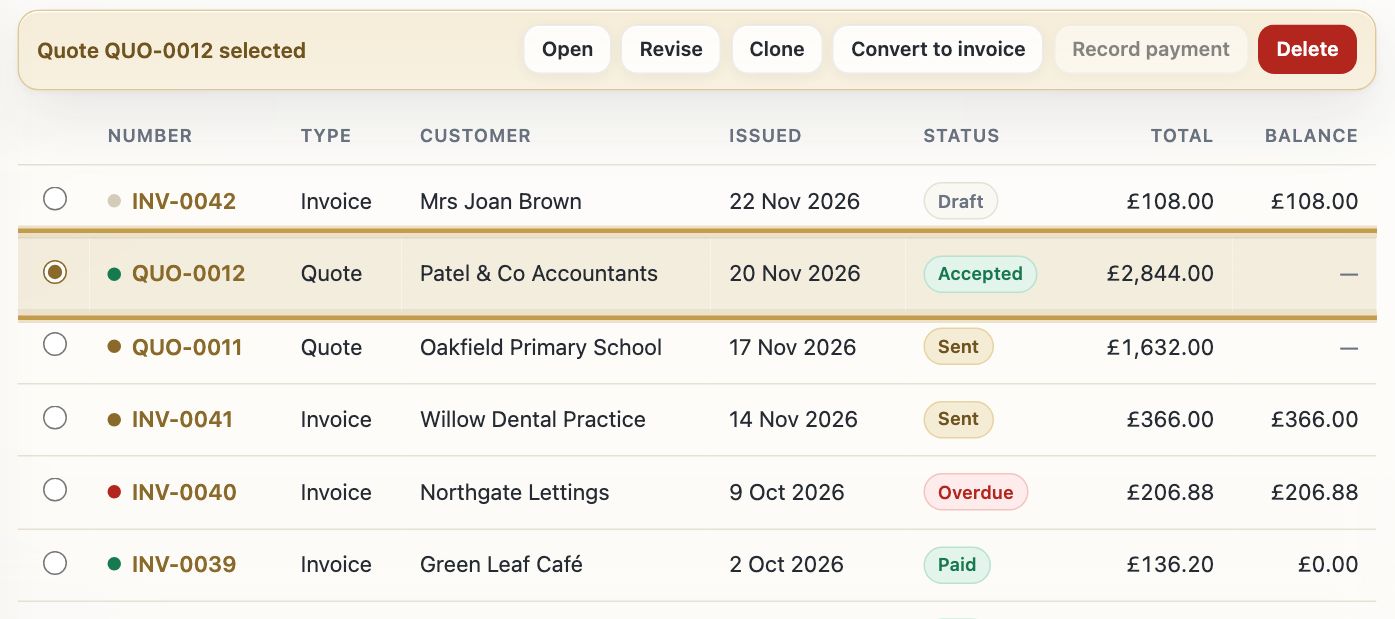
In My documents, tick the circle at the start of the quote’s row. The Quotes tab above the list shows only quotes, if you have a lot of documents.
-
Choose Convert to invoice
In the bar above the list, choose Convert to invoice.

-
Your invoice is ready
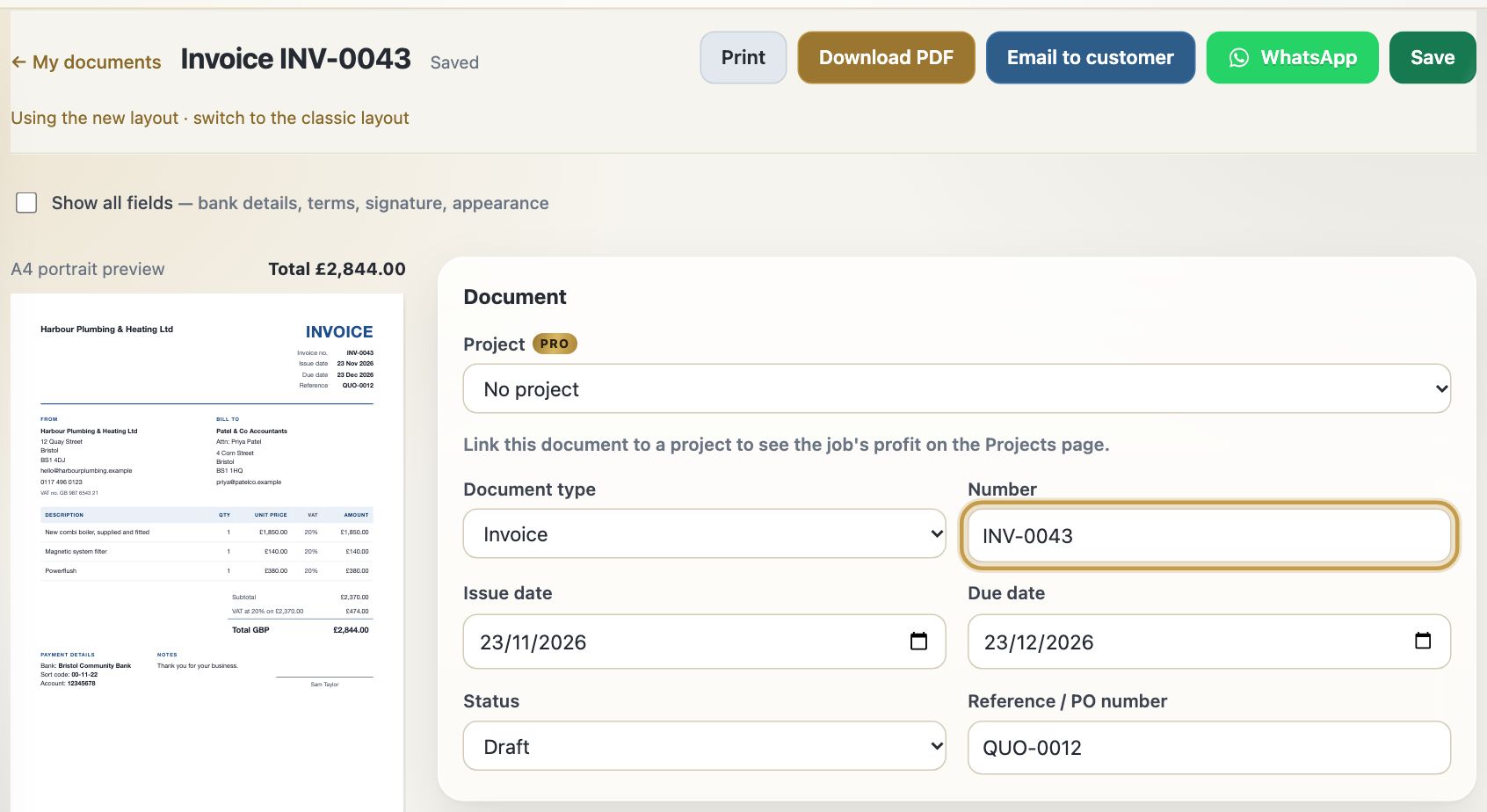
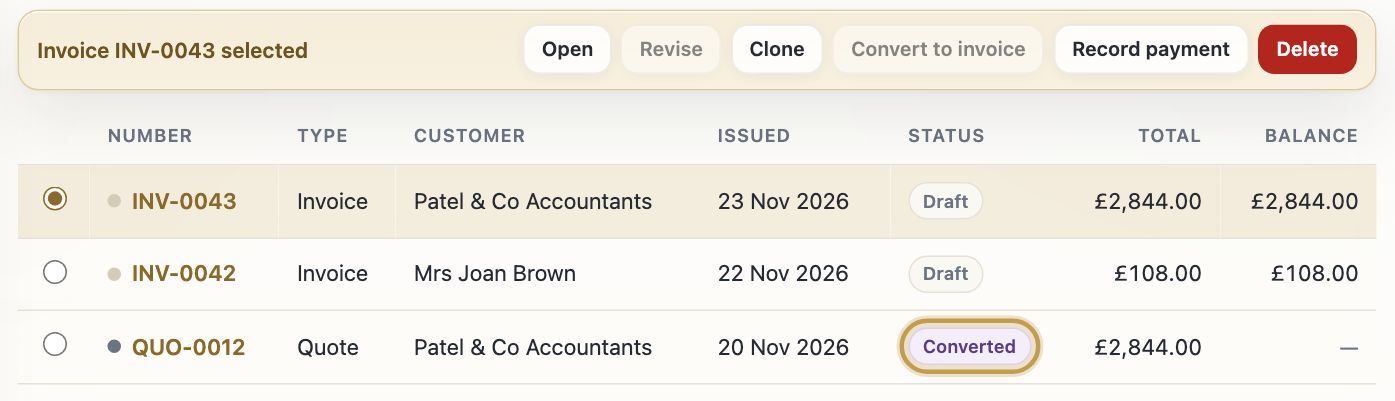
A new draft invoice appears at the top of the list, with the same customer and lines and the next invoice number. The quote is marked Converted, and kept just as it was.
-
Check it, save it and send it
Choose Open. The quote number is kept in Reference / PO number. Make any changes, choose Save, then send it.