
Keep your account secure
Turn on two-step sign-in, and change your password.
-
Open Account security
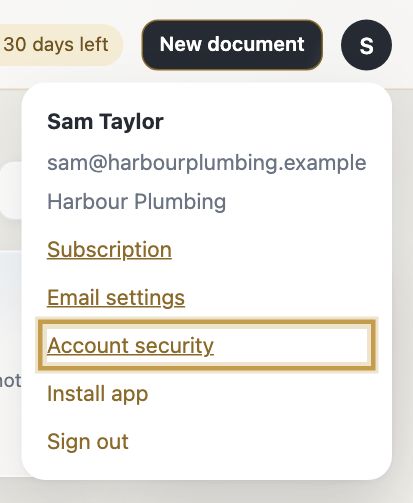
Choose your initial at the top right, then Account security.
-
Add where your codes go
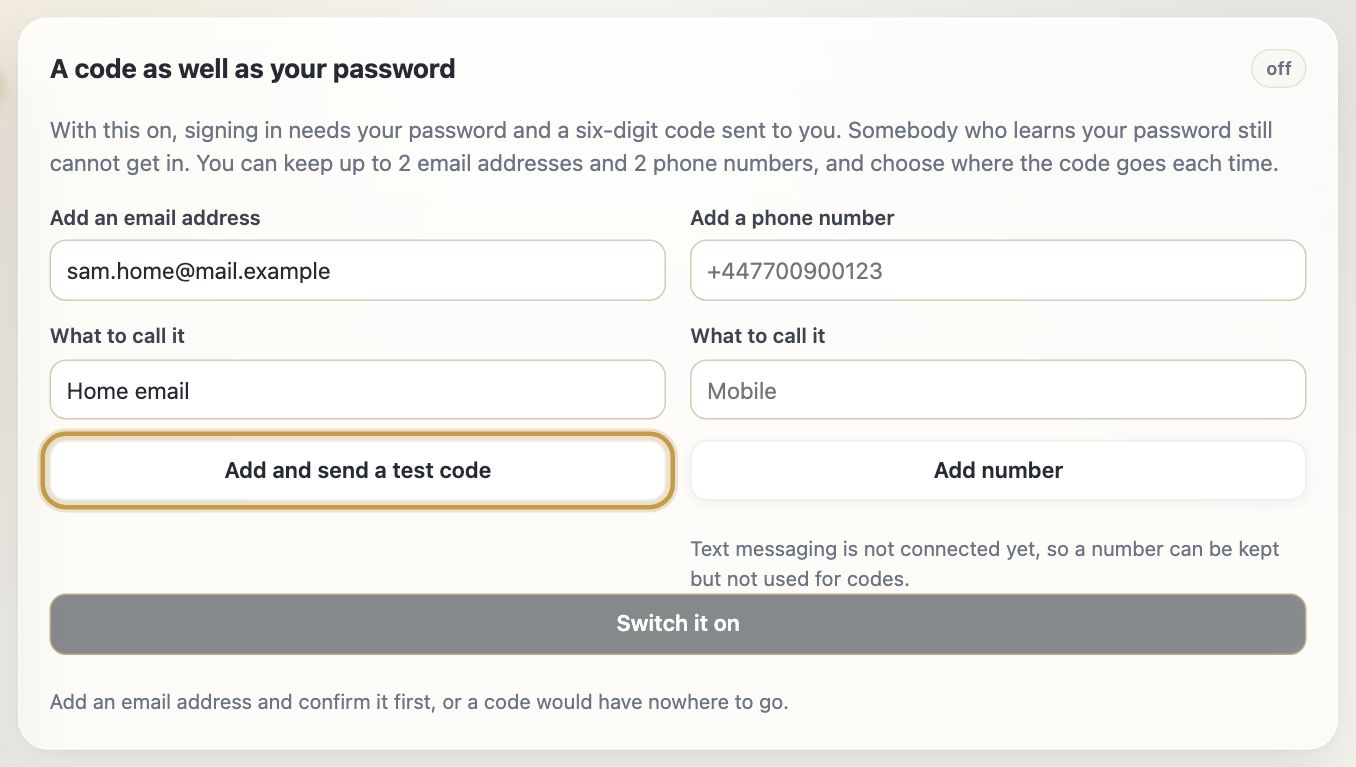
Under A code as well as your password, add an email address and a name for it, then choose Add and send a test code and type in the code you receive. (You can store a phone number too; the page says whether codes by text message are available yet.)
-
Switch it on
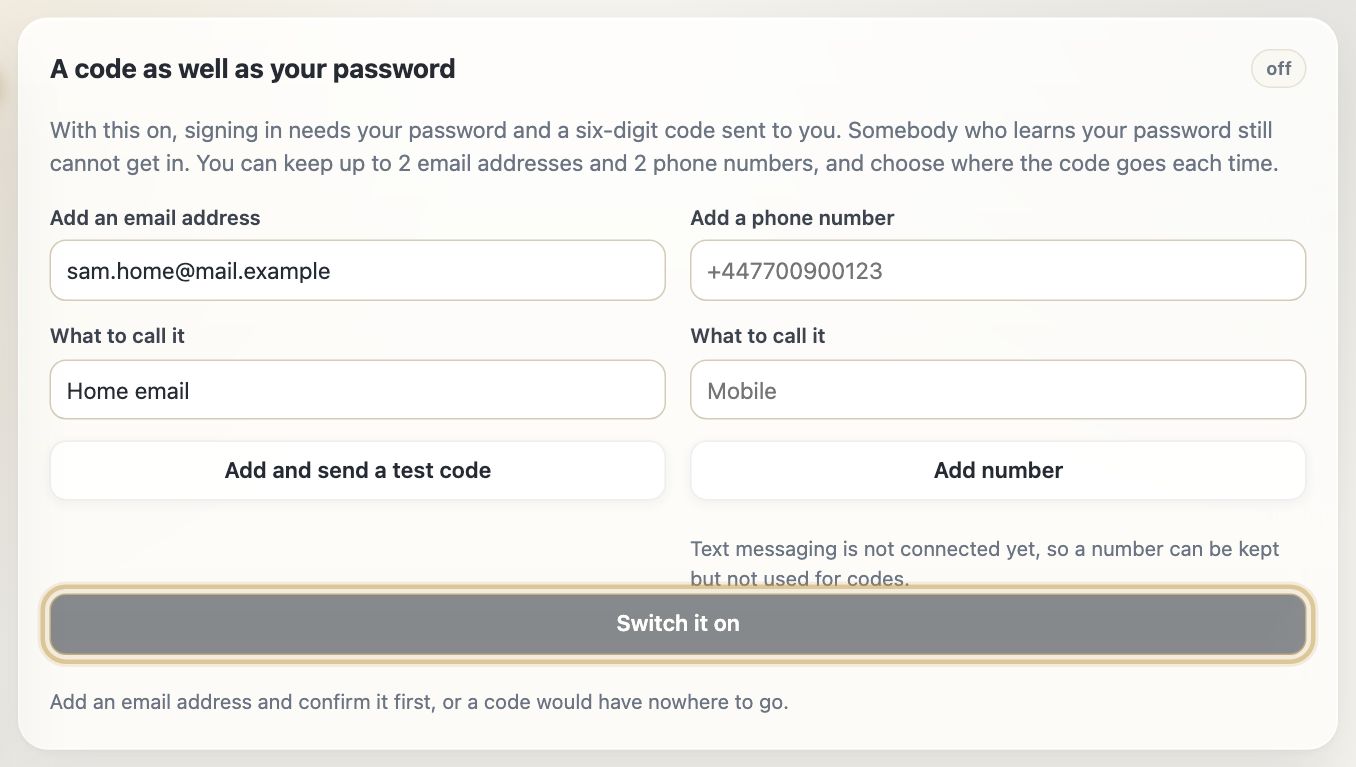
Once your address is confirmed, choose Switch it on. From then on, signing in needs your password and a six-digit code, so someone who learns your password still cannot get in.
-
Change your password
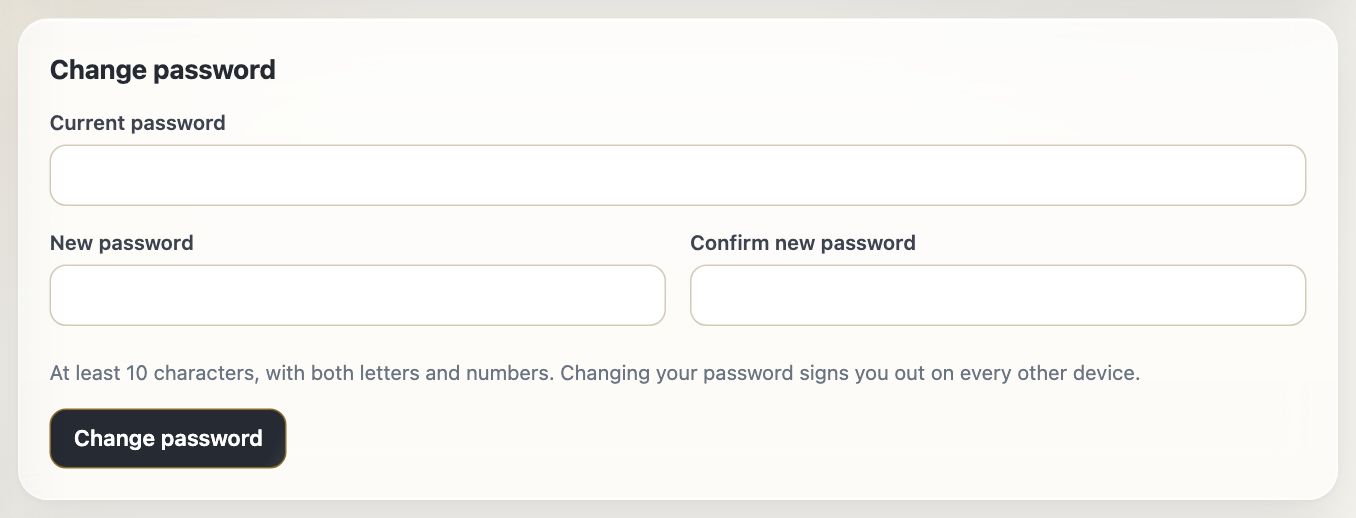
Under Change password, type your current password and the new one twice. Changing it signs you out everywhere else, which is useful if you have lost a phone.